
Add a customer-facing Clover Mini
As a customer-facing device, the Clover Mini displays information that only customers are meant to
see. When not in use, the device displays the merchant’s business name on its screen. When in use
during a transaction, the customer-facing Clover Mini prompts for the customer to pay, sign, and
enter their PIN. If tip is enabled, it prompts for a tip.
Place your customer-facing Mini at a location that best suits your customers. Place your merchant facing
Mini, Station, or Station 2018 in a location that you or other employees can reach. Setting up
your devices include:
- Tethering (physically connecting) your two devices.
- Installing the USB Pay Display on both the merchant-facing device and customer-facing Mini. This
app is only available on Clover Mini and Clover Station.
To connect your Station 2018 (or Clover Mini) to your customer-facing Mini:
- The USB connection cord must have a type A USB on one end and type B USB on the other end.
- Plug in the Type A USB connector to one of the 4 USB ports on Clover Station 2018 hub.
- Plug in the Type B USB connector to the second port from the left on Clover Mini hub.
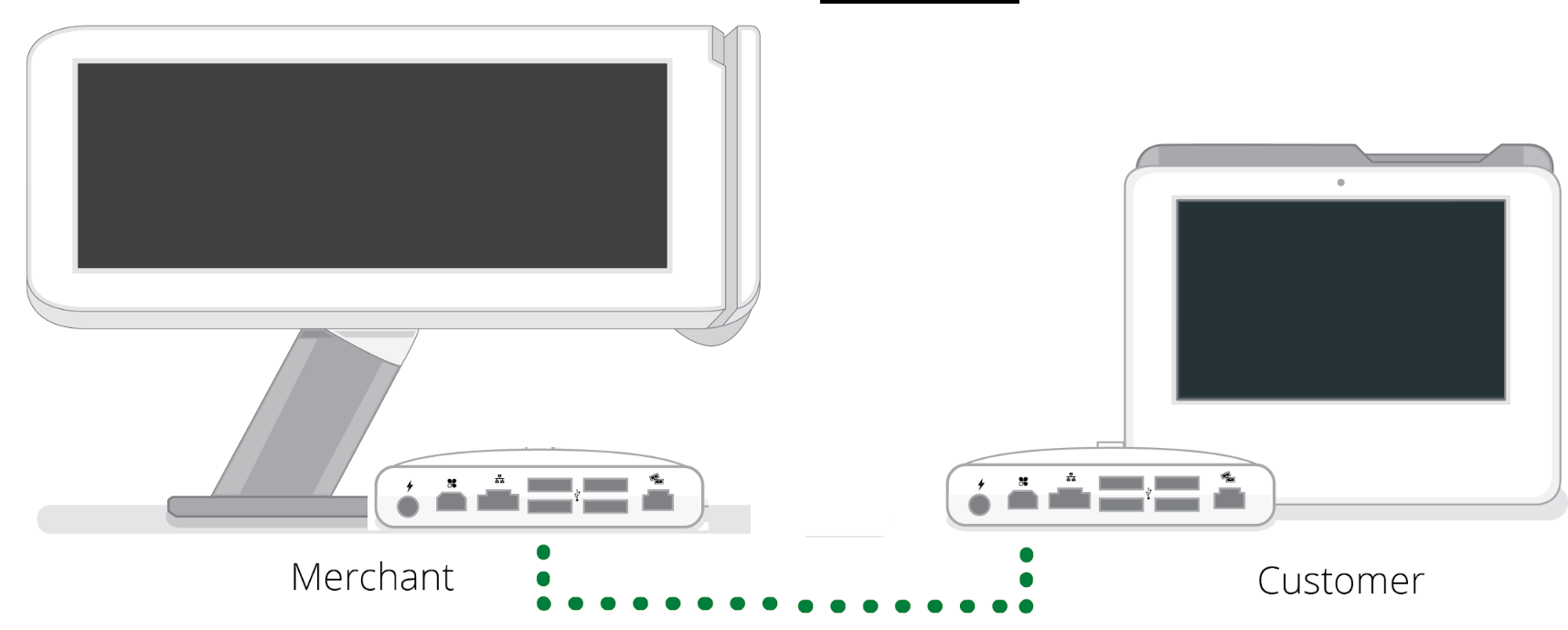
To install the USB Pay Display app:
The USB Pay Display app must be installed on both the merchant-facing Station 2018 and
customer-facing Mini.
This app is only available on Mini, Station, and Station 2018.
- After connecting the USB cable between a merchant-facing Station 2018 and customer-facing
Mini, you will automatically be prompted to install USB Pay Display app.
If you are not automatically prompted to install the app, open the More Tools app to get to the
App Market. Tap USB Pay Display app. - Tap Install.
- Tap the Accept & Install to connect
*The USB Pay Display app must be installed on both the merchant-facing and customer facing
devices.*
To switch from merchant-facing Clover Mini mode to customer facing
mode:
To Switch Clover Mini from customer-facing to merchant-facing
mode:
- Tap USB Pay Display app to launch the customer-facing Clover Mini display.
A screen showing how to exit customer-facing mode displays for a few seconds. If you do not
want this screen to show up again, check the Don't remind me again checkbox. - If you are in the process of a transaction, the payment process will continue. For example, if you
enabled tips, the tips screen will display next.
Otherwise, Clover Mini should display "Welcome to [Business Name]" when it is in customer-facing
mode.
Comments
0 comments
Please sign in to leave a comment.