
Connect to power and charge your Clover Flex
Your Clover Flex arrives with enough battery power to set it up and activate it. You can fully charge it whenever you have the time.
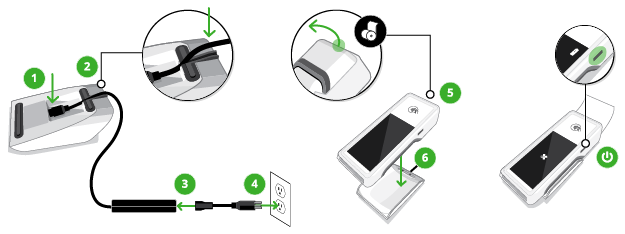
To connect to power and charge your Clover Flex:
- Holding the charging cradle upside down, firmly insert the power cord into the charging input.
- Thread the cord across and out the back.
- Insert the power cord into the charging brick.
- Plug in the other end of the power cord to a power outlet.
- Set the Flex on top of the charging cradle.
- Allow the device to charge until the indicator shows a full battery.
After you connect to power and optionally charge your Clover Flex, you can connect to the Internet and activate your Clover Flex.
Connect to the internet and activate your Clover Flex
Before you start this part of the set-up process:
- Find your activation code in the activation email you received from Clover.
- If you plan to connect to the internet using Wi-Fi, check to make sure your router is set up, connected to the internet, and has a security level of WPA or WPA2. Your network needs to be a closed, protected, secure network to process payment transactions. (If you offer Wi-Fi access to your customers, follow best practices and give them a different network to use.)
To connect to the internet and activate your Clover Flex:
- Remove the protective plastic film from the front display glass.
- Switch on the device by pressing the power button on the right side until the Clover logo appears.
- On the display, tap to choose your language and then tap Next.
- On the Network screen, tell the device what kind of internet network connection you want to use:
- Mobile networks use the installed SIM card and your cellular
phone connection. - Wi-Fi networks connect wirelessly to a router you have
previously set up.
- Mobile networks use the installed SIM card and your cellular
- Wait until you see the message that the device is successfully connected and then tap Next.
- On the Activate screen, enter the code you received in your activation email from Clover.
- On the Install apps screen, wait while Clover installs the latest apps for your account.
You can insert the receipt paper while the Clover apps are downloading.
Insert a receipt paper roll into your Clover Flex
To insert a receipt paper roll into your Clover Flex:
- Hold the device so the back of it faces you.
- Open the paper compartment by grasping the top of the compartment door and pulling it toward you.
- Insert the roll of thermal paper so that the end extends straight out the slot in the top of the compartment door.
- Close the compartment door until it clicks.
- On the display screen, tap to print a test receipt.
Set up fingerprint access, passcode access, and signature locations
You can complete these tasks now during the set-up process, or later with the
Employees app.
- Fingerprint access (if available on your device) sets your Clover Flex to log you in by recognizing a fingerprint when tapped on the Power button.
- Passcode access requires an input code on the device screen to log in.
To set up login access and signature locations:
- After Flex device activation, on the device Power button, gently tap the finger (or thumb) you want to use for login access on the fingerprint sensor.
- Keep tapping until the image on the display shows all parts of the fingerprint. The display gives you progress messages.
- When the display tells you your fingerprint has been added, tap Continue.
- Decide whether you want to require a passcode to access the device and choose an option. (Use the Employees app to assign passcodes.)
- Decide where you want to accept customer signatures at payment time, either on the device or on a printed receipt.
- Tap Continue.
Comments
0 comments
Please sign in to leave a comment.